Accept bookings
Customers book themselves on your public page, or you create the booking for them. Either way, the job lands in Bookings with a clear time, customer, and service — no back-and-forth DMs.
Before you start
- Add at least one bookable service under Services (Booking on, Active on).
- Set weekly hours under Availability.
- Keep Accept bookings on in Settings → Bookings.
- Add a platform card under Settings → Billing so creates and public booking stay unlocked.
- Share your public link from Profile or Home.
The public booking flow
This is how a customer books from your website / booking link.
1. Customer opens your page
Step 1
Public page with Book now on Express Wash
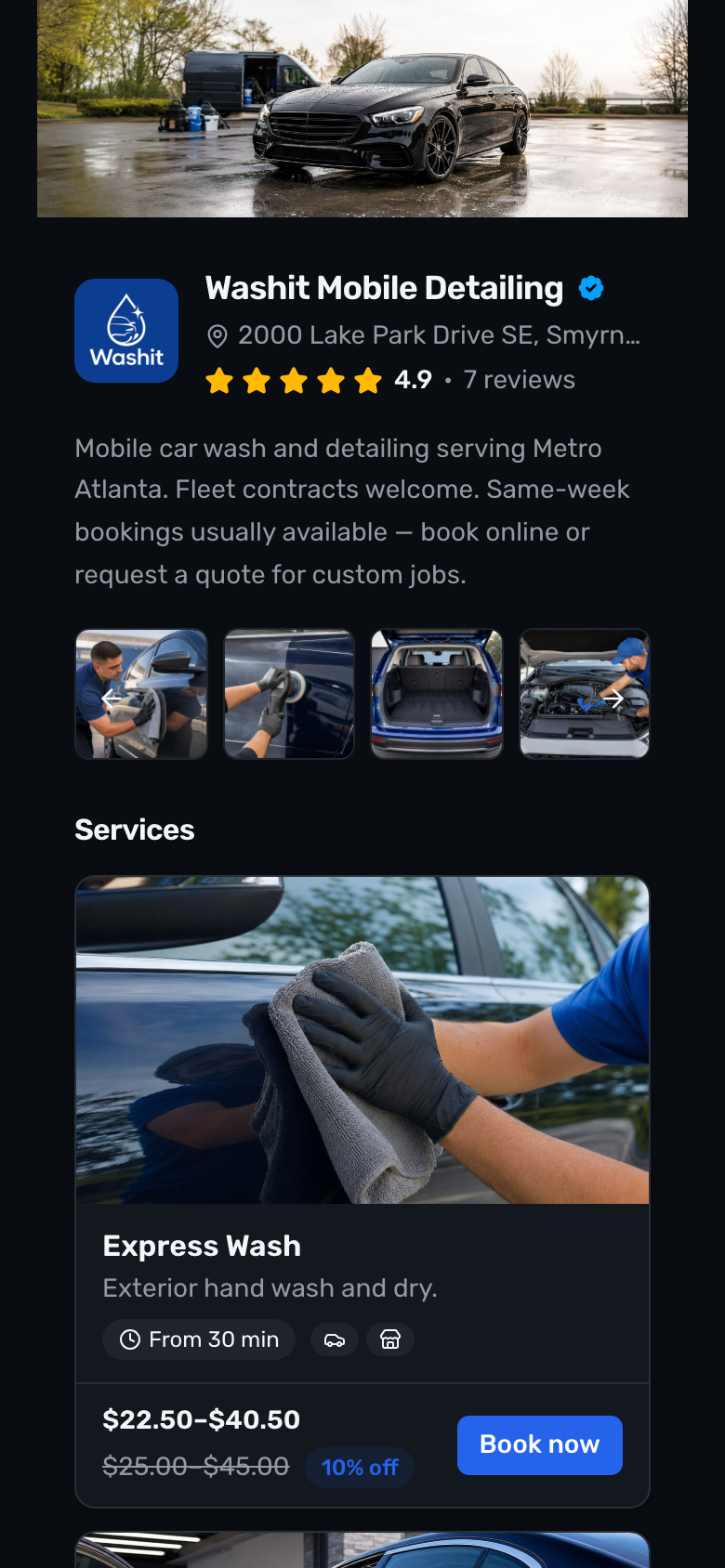
They land on your public page and see services with Book now.
2. They pick a service
Step 2
Service detail before booking
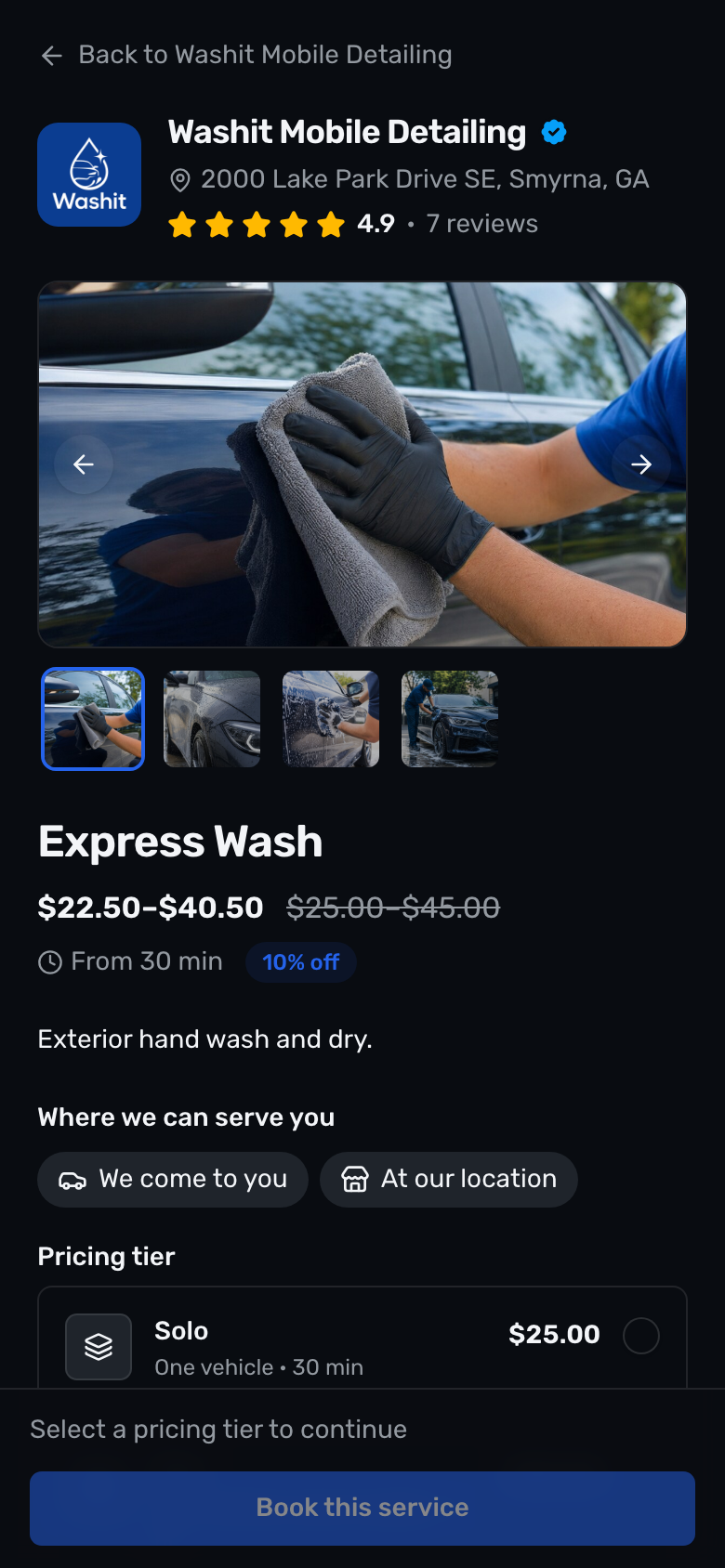
Service detail shows price, duration, tiers or add-ons when you set them, and Book this service.
3. They choose a time and details
Step 3
Booking wizard to choose a time
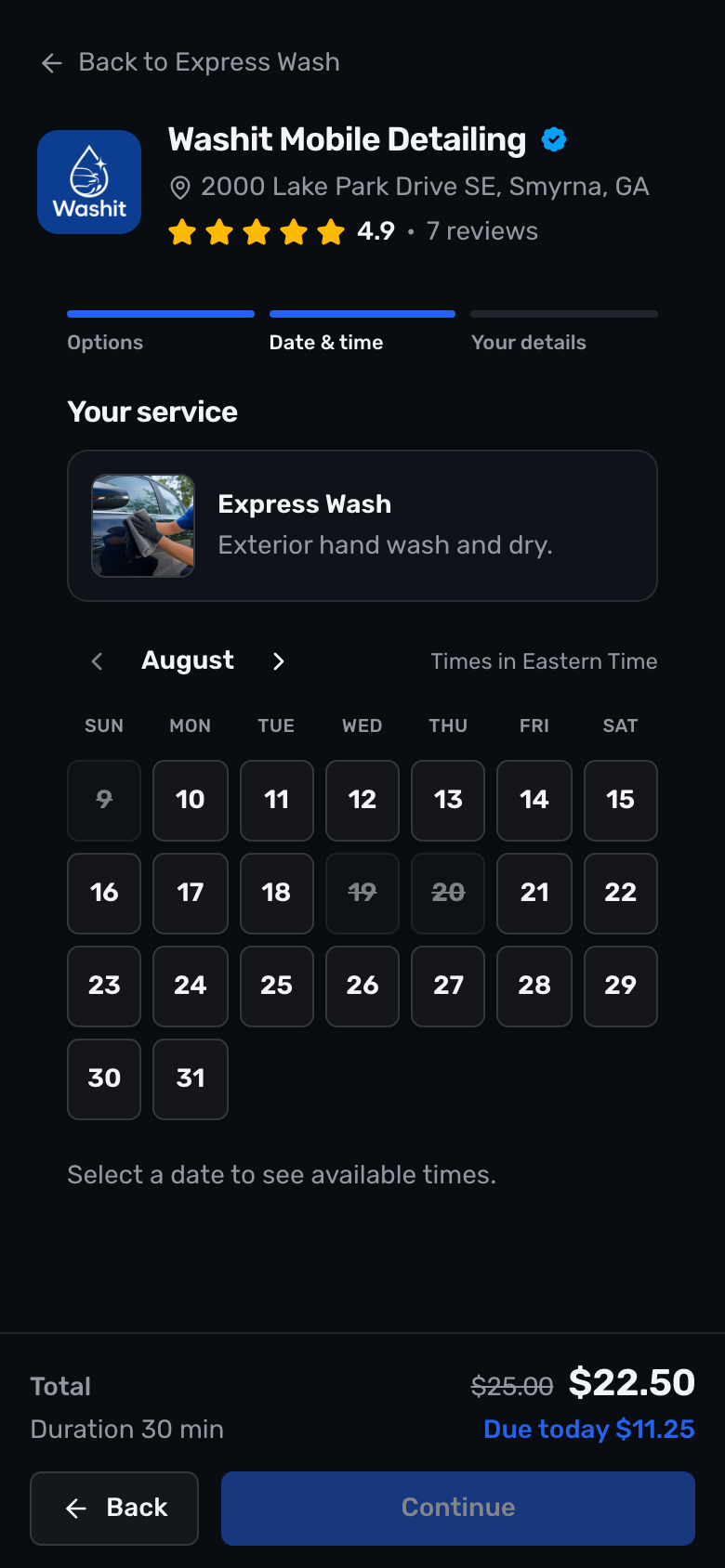
The wizard walks them through options (if any), visit location when we come to you (ZIP when you restrict the area, otherwise address), date & time, contact (phone required), and payment or deposit when you require card. Times that cannot fit the drive from an earlier stop that day are simply not offered. Book now is always one visit — there is no how-often step. Regulars go on On the schedule after you already know them.
4. You see it in Bookings
Step 4
Bookings list where the new job appears
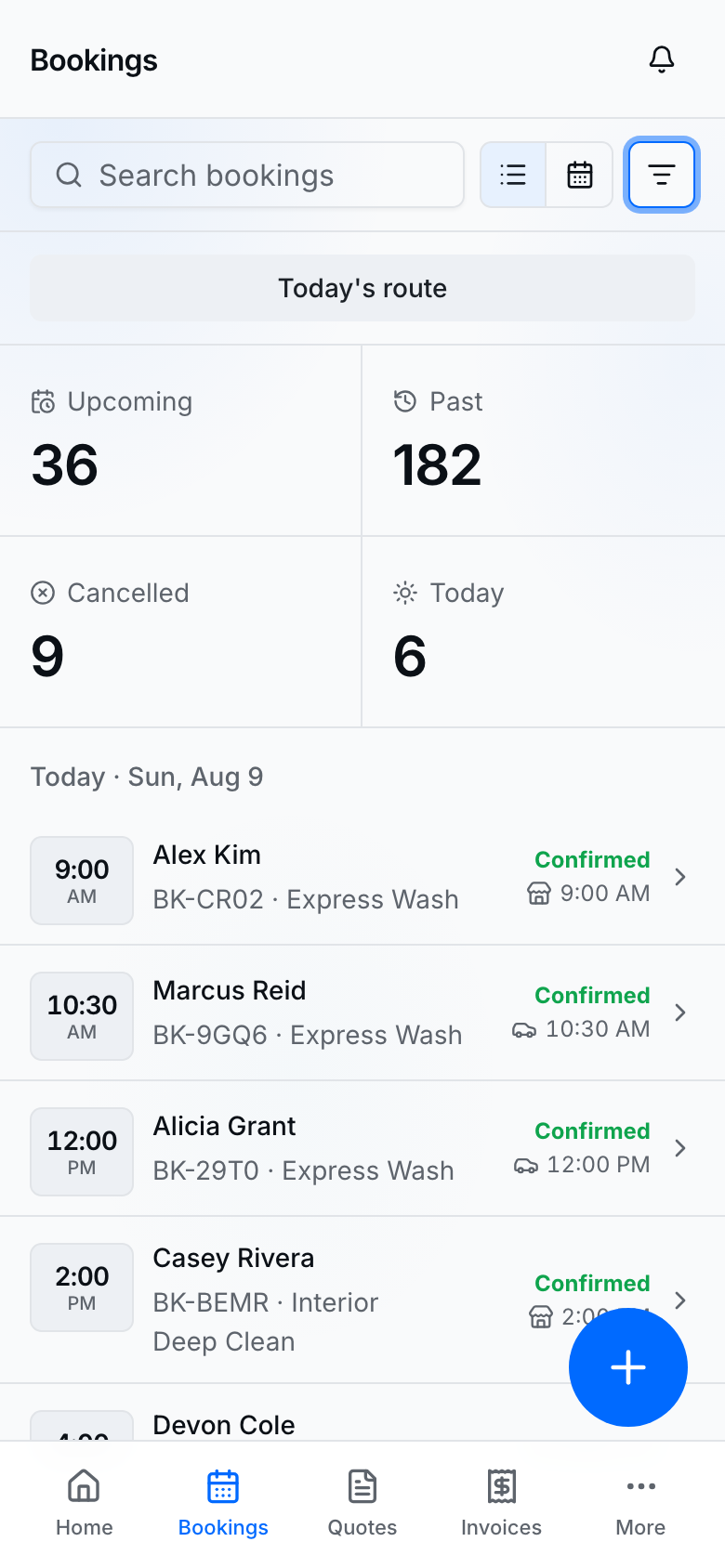
Open Bookings. Use the filter (Upcoming, Today, Past, Cancelled) and open a row for details, Take payment, complete, or cancel. Upcoming and Past group jobs by day — Today first, then sticky headings like Tuesday 18 with the same time thumbs.
Create a booking yourself
Use this when the customer called or texted and you already agreed on a time.
- From Bookings, Home, or a customer detail page, tap New booking (needs a card on file). That opens the New booking page.
- Customer — pick an existing person or enter name + phone (email optional). Keep messaging consent accurate.
- Details — choose a catalog service or a custom job; add notes if needed.
- Options — pricing tier and add-ons when the service has them.
- Where — visit type (we come to you / at the shop / online) and address when required.
- Date & time — pick a day and an open slot. At-customer times already account for drive time to and from other stops that day.
- Payment — apply a promo if needed, collect deposit or full amount when due, then Create booking (or Confirm booking when attaching to an invoice). You land on that booking's detail.
Day planner and Today's route
- Switch Day planner on Bookings for a time-grid view of the day — see Bookings planner.
- For in-person stops, use Today's route companion on Home, or open Routes from the sidebar (Routes) when you need the whole day. New at-customer bookings are already checked so they cannot add a drive that does not fit when an estimate exists.
- Open a booking — When and Where sit at the top (side by side only on a wide desktop; they stack earlier so Where is not a skinny column). Where is one row: Visit at the customer or Visit at the shop, plus the address when you go to the customer. On this day is the last section on the right and uses the same stop and drive rows as Today's route. This booking stays open; Before and After start closed — tap to see address, phone, and notes. The inbound drive from the previous stop or homebase sits on the right. Shop bookings still show that drive when you are coming from a customer. Directions on Where opens that same route in Google Maps when you visit the customer — not for shop visits.
Settings that control booking
- Settings → Bookings — Accept bookings, booking reminders, After a visit, ask if they want this day to repeat (default off — D-705), Travel buffer, booking terms, service area, online meetings.
- Per-service lead time / window / buffer — on each service, not on Settings → Bookings.
- Weekly hours and time off — Availability.
Tips
- Lead time and booking window are set per service under Booking rules on the service form — not on Settings → Bookings.
- Use Availability Time off so public slots stay honest when you are away.
- For jobs that need a price first, use Quotes / public Request a quote instead of (or alongside) instant book.
- If the public page says you are not accepting bookings, turn Accept bookings back on in Settings → Bookings.