Bookings planner
See the day as a time grid — not only a list — so overlaps and gaps are obvious before you leave the shop.
See it in action
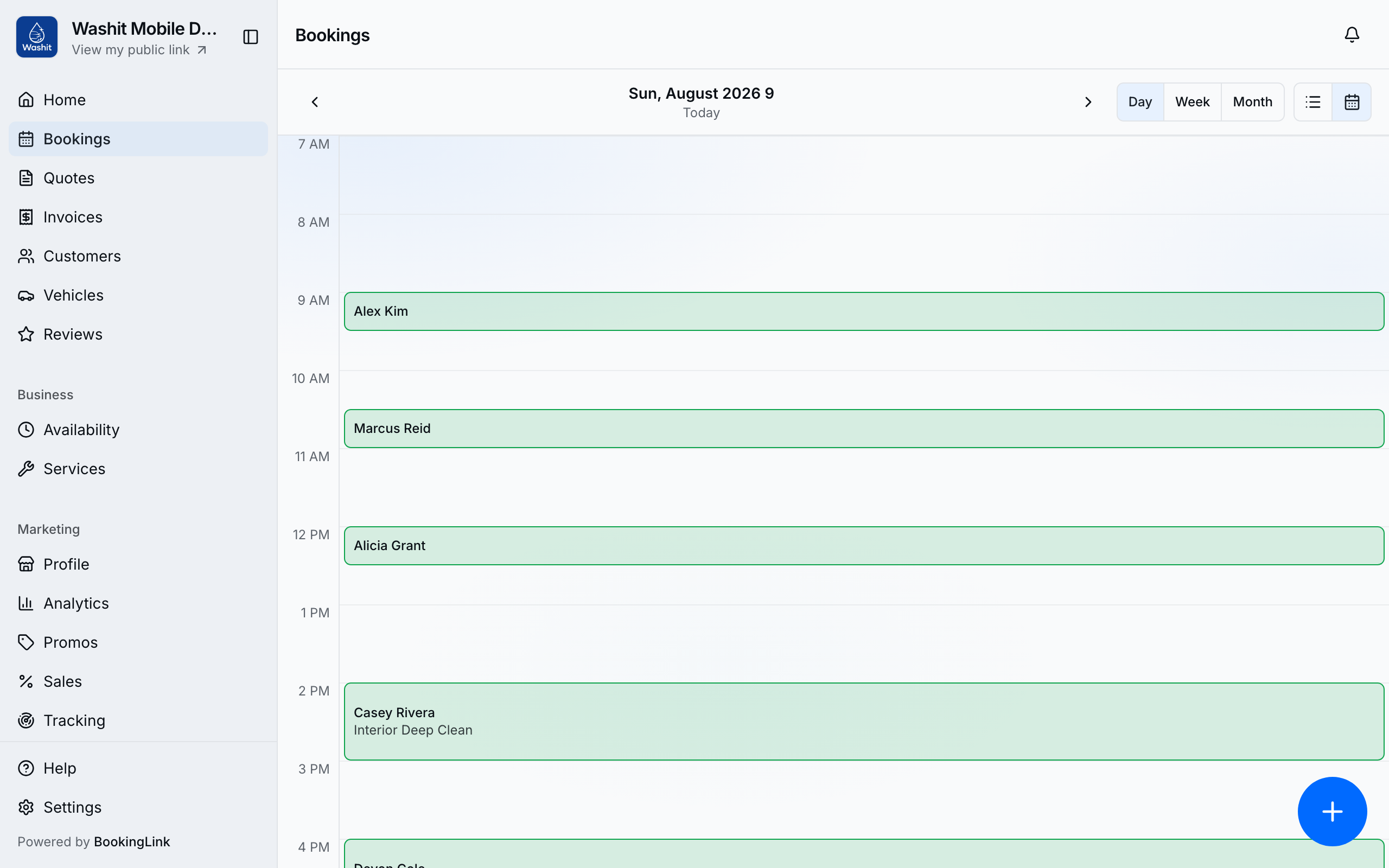
Open Bookings and switch to Day planner, or go straight to /bookings/planner.
Switch between list and planner
- Open Bookings.
- Tap the Day planner control in the header (list ↔ planner). List is better for status search; planner is better for the shape of the day.
- From the planner, the same toggle returns you to the list.
Navigate the grid
- Pick the day you care about with the date controls.
- On desktop, use Day / Week / Month grain when you need a wider horizon.
- Scan colored booking blocks for overlaps and empty gaps.
- Tap a block to open booking detail (back navigation remembers you came from the planner).
Fill a gap or change a job
- Use New booking from Bookings (card on file required) when you see an empty stretch you want to sell. Clicking an empty planner slot opens New booking with that date and time filled in.
- Open a booking to Take payment, complete, cancel, or edit details the same way as from the list. Standing visits from On the schedule are normal bookings here — skip one visit from the booking or the customer’s Bookings list; manage cadences on the customer’s Schedules section; do not drag to a new time.
- For drive order on in-person stops, open Routes from the sidebar (Routes) — the planner does not reorder travel.
Tips
- Planner and list share the same bookings — they are two views, not two calendars.
- Weekly hours still come from Availability; the planner does not replace that settings page.
- Filters like Upcoming / Today live on the list view; use them when you need status search, then switch back to planner for layout.
- On the list, days after (or before) today get their own sticky heading — Tuesday 18 — with the same time thumbs as Today. The heading stays pinned while you scroll that day.
- Related: Accept bookings for public and provider create flows. Regulars belong on On the schedule, not a second planner.