Profile
Your public page is the storefront. Brand, bio, gallery, and contact details here are what customers trust before they hit Book now or Request a quote.
See it in action
See it
Profile editor for the public page customers see
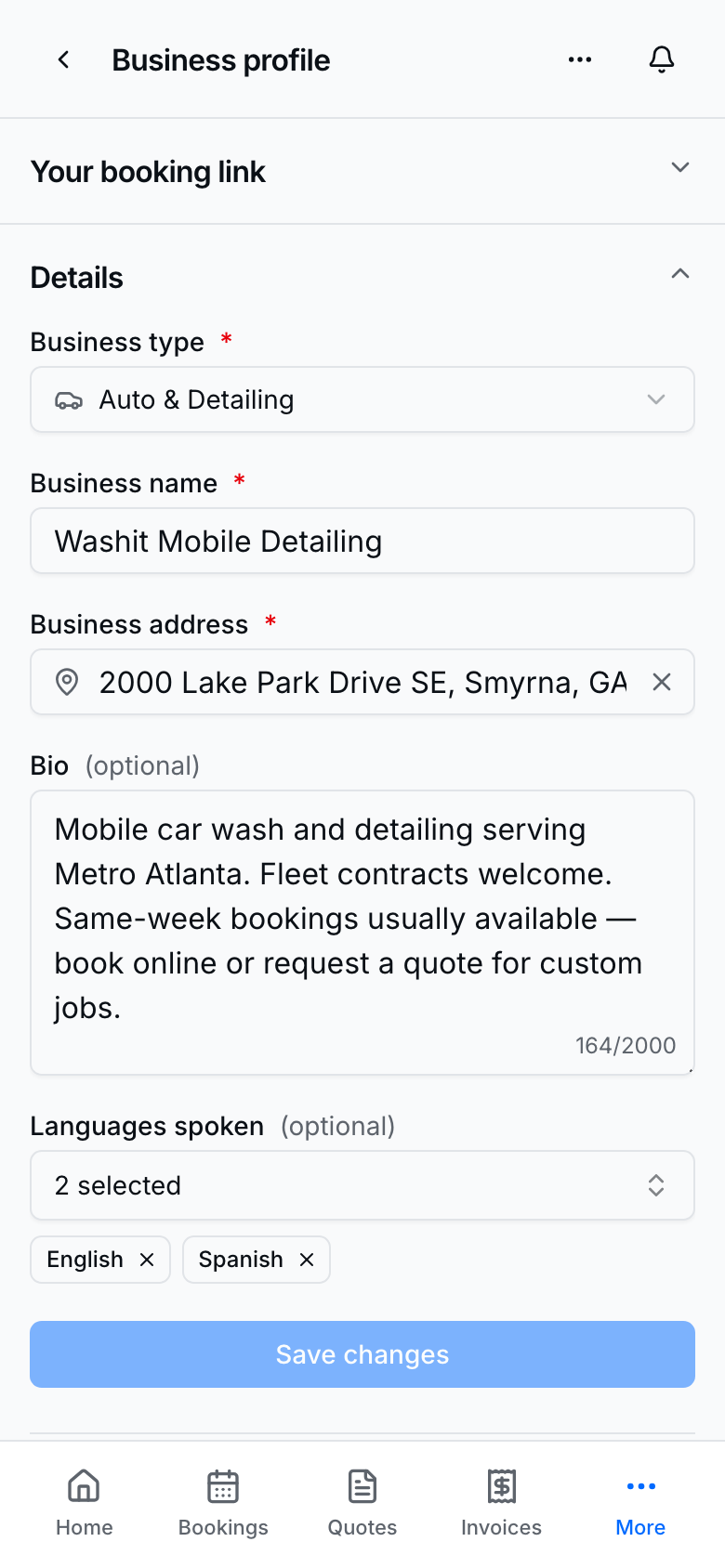
Edit everything under Profile (More → Public site).
Set up your public page
- Open Profile.
- Open Branding to set cover, logo, theme, and page width.
- Fill Details — name, type, address (required), bio.
- Add Gallery photos so the page feels real.
- Open Services to manage the catalog customers book.
- Add FAQs customers see on the page.
- Fill Contact — phone, optional WhatsApp, email, website, social links.
- Open Language. Tap a language flag to pick the country customers see (Spanish defaults to Argentina). After you add a language that BookingLink translates (Spanish, French, Portuguese, Vietnamese, Chinese, Korean, Haitian Creole, Tagalog, Hindi, Russian, German, Italian, Polish, or Japanese), Translation available is on so that language appears on your booking page. Turn it off if you only want the spoken-language badge. Customers then see a language menu — flag plus name — at the top right of your cover photo, or next to your name if you have no cover. Arabic is a spoken-language badge only.
- Save changes where the form asks. Empty blocks on the live preview (cover, bio, gallery, services, FAQ, languages, AI booking banner) open the matching section on the left when you tap them. The preview footer is the same as customers see: Pay my bill, languages, We accept payment methods, and the ChatGPT banner when AI assistants are on.
Share your booking link
See it
Public Washit page powered by your profile
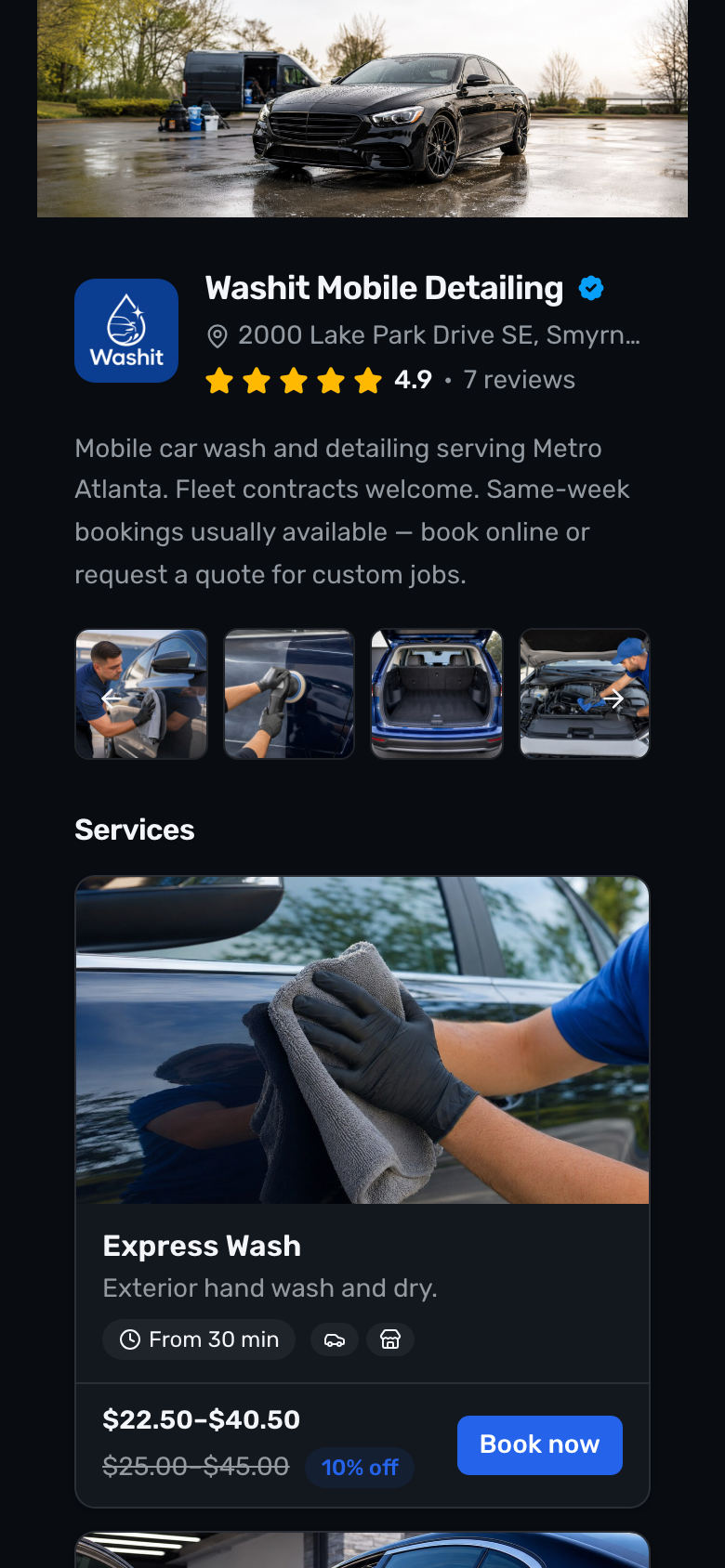
- On Profile (or Home), find Your booking link.
- Copy booking link or Open booking link.
- Share it in Instagram, Google Business, texts, and ads.
- Use Change your booking link only when you intentionally need a new slug (old links stop working).
Directory
- On Profile, open the Directory section.
- Turn Show in the near-me directory on when you want to appear on near-me search.
- Keep address and listing fields complete so you stay eligible.
- Pair with Accept quotes (Settings → Quotes) for free inbound quote requests from discovery.
- Full how-to: Near-me provider directory.
AI assistants
- On Profile, open the AI assistants section (or tap the AI booking banner on the live preview).
- Turn Allow AI assistants to book me on only when listing + accept bookings are ready. The ChatGPT banner appears at the bottom of your public page.
- Share the Claude connector URL or point people at /docs/ai-booking.
- Full how-to: AI discovery booking.
Tips
- Pair Profile with Services and Availability so Book now works end to end.
- The public footer shows Powered by BookingLink — that is expected.