Home
Start the day knowing what matters: your booking link, today's route, money signals, and quick creates — without hunting through menus.
See it in action
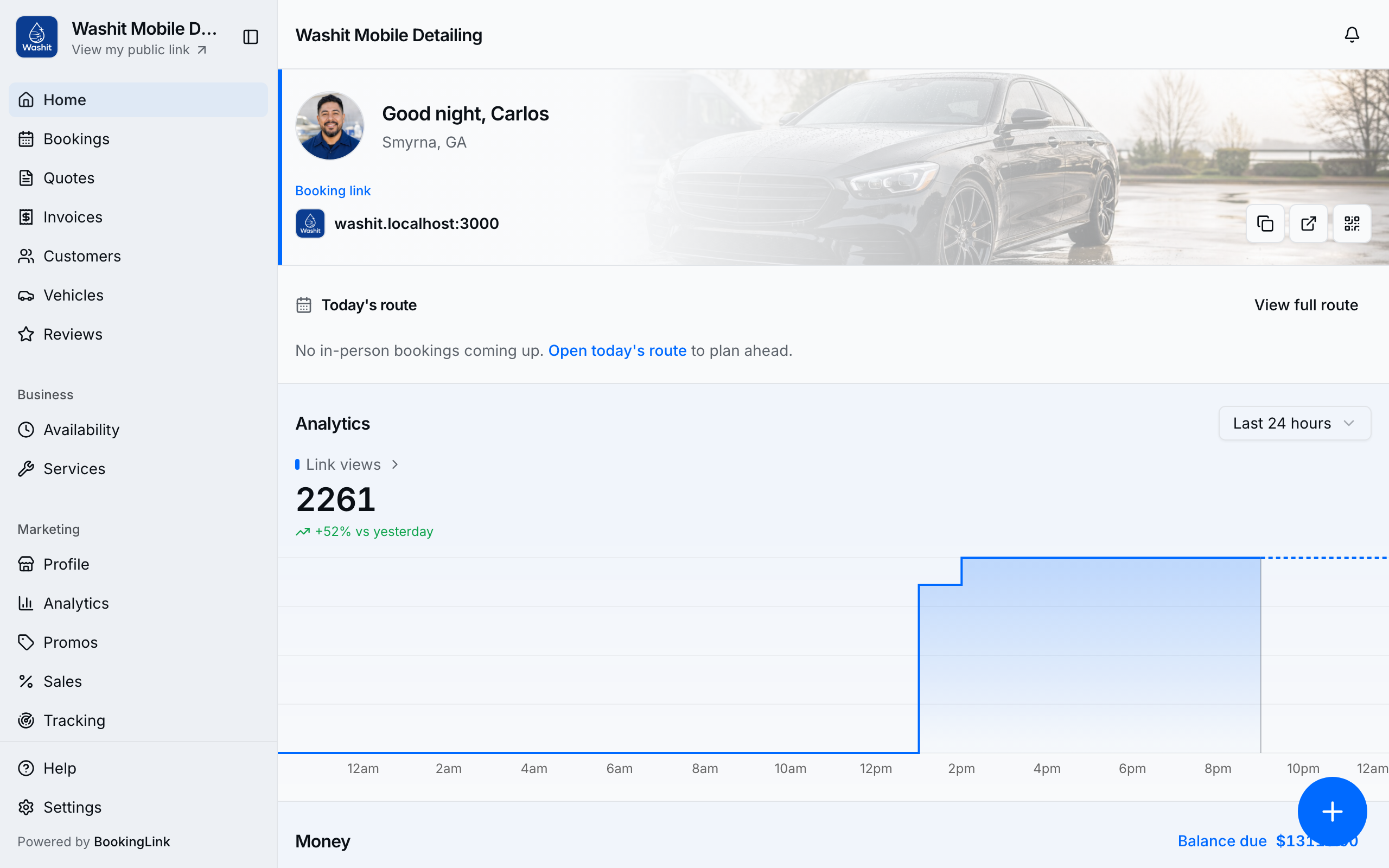
Copy your link, jump into Today's route, and create work from one place.
How to use Home
- Open Home after you sign in (first stop after the card checkpoint on `/onboarding/welcome`, not after Finish setup alone).
- Use the highlighted Booking link row — Copy link or open the public page to verify what customers see.
- When you have in-person stops, use Today's route companion (map / leave-by / On my way / Complete) or open Routes from the sidebar (Routes).
- Scan money, bookings, and quotes, then link-view analytics at the bottom when they appear for your entitlements.
- Check the notification bell for new bookings, quotes, and payment activity.
- Use the Home create control for a fast New booking, quote, invoice, customer, or service (card on file required for gated creates).
Banners to act on
- No card on file — add a card under Settings → Billing so creates and public booking stay unlocked. This banner is a bypass / billing-blocked edge, not the happy path — Home is behind the welcome card checkpoint.
- Listing incomplete / hidden — finish address or directory settings on Profile.
- Bookings or quotes turned off — restore toggles under Settings → Bookings or Settings → Quotes.
- Platform billing blocked — open Billing and clear the overdue platform invoice before you can accept new bookings.