Analytics dashboard
See whether your public link is actually getting traffic — and whether a promo or share push moved the needle.
Before you start
Nothing required to view analytics. A platform card under Settings → Billing is still needed to accept bookings and set up marketing offers/tracking.
See it in action
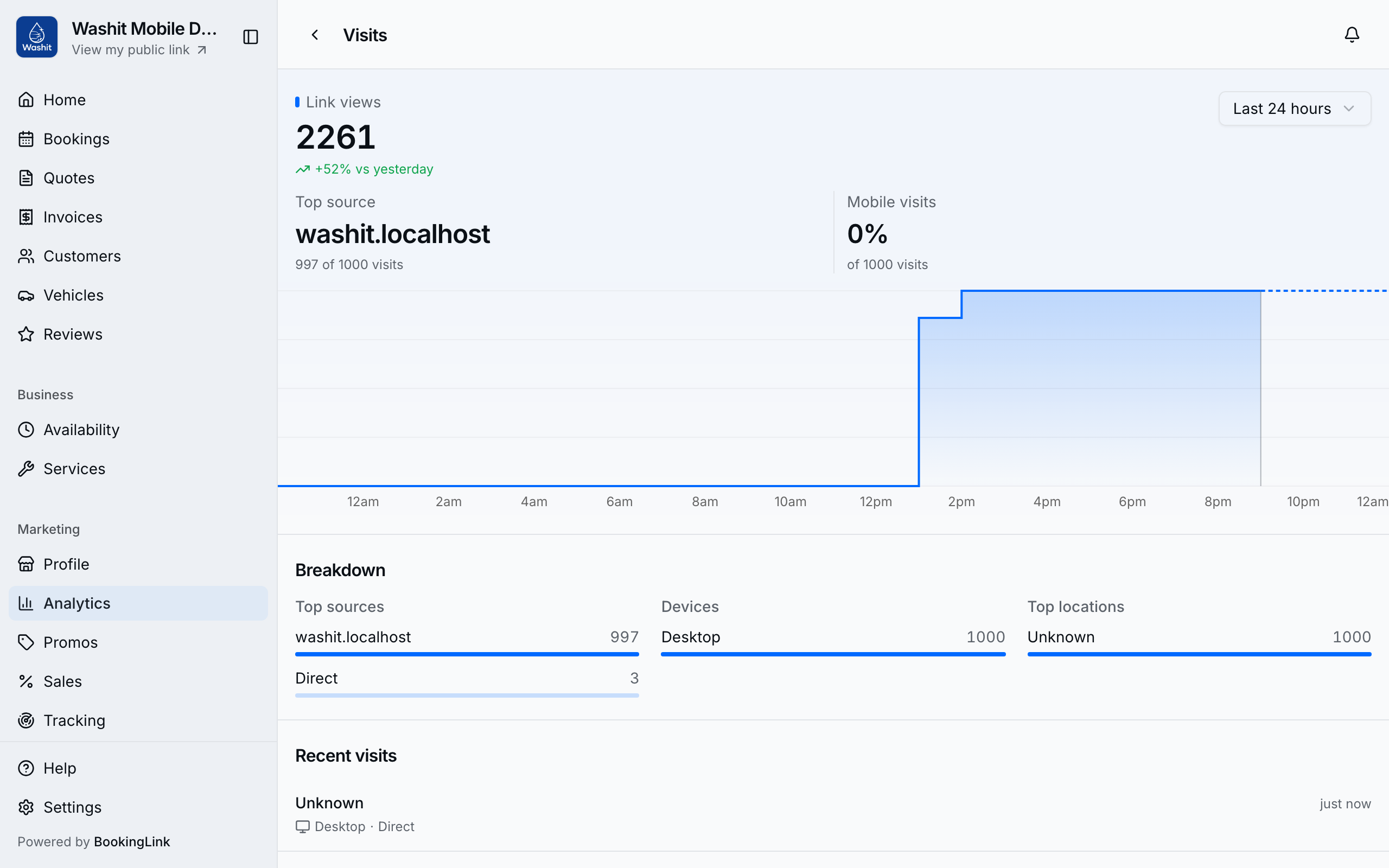
Visit windows (24-hour, 7-day, 30-day) show how your booking page is performing.
How to use visits analytics
- Open Analytics (Marketing in the sidebar, or More on mobile).
- Pick a range your entitlements allow (for example 24 hours, 7 days, or 30 days).
- Scan visits over time after you share your link, run a promo, or post on social.
- If you see No card on file, you can still read the charts — add a card under Billing when you're ready to accept bookings or set up marketing.
Pair with ad tracking
Visits analytics answers “did people open my page?” Ad platforms need pixel / tag ids too:
- Open Marketing → Tracking (see Marketing tracking).
- Paste Google Ads, Google Analytics, Tag Manager, and/or Meta Pixel ids.
- Your public booking page fires the events automatically once ids are saved.