Quotes & quote requests
Price custom or uncertain jobs without guessing in a text thread. You send a clear quote, or the customer requests one from your public page — they accept on your link when ready, and it can become a booking.
Before you start
- Keep a platform card on file under Settings → Billing.
- For inbound requests, turn Accept quotes on in Settings → Quotes.
- Have services (or be ready to price a custom line) under Services.
The quote flow
1. Open Quotes
Step 1
Quotes list of outbound quotes and requests
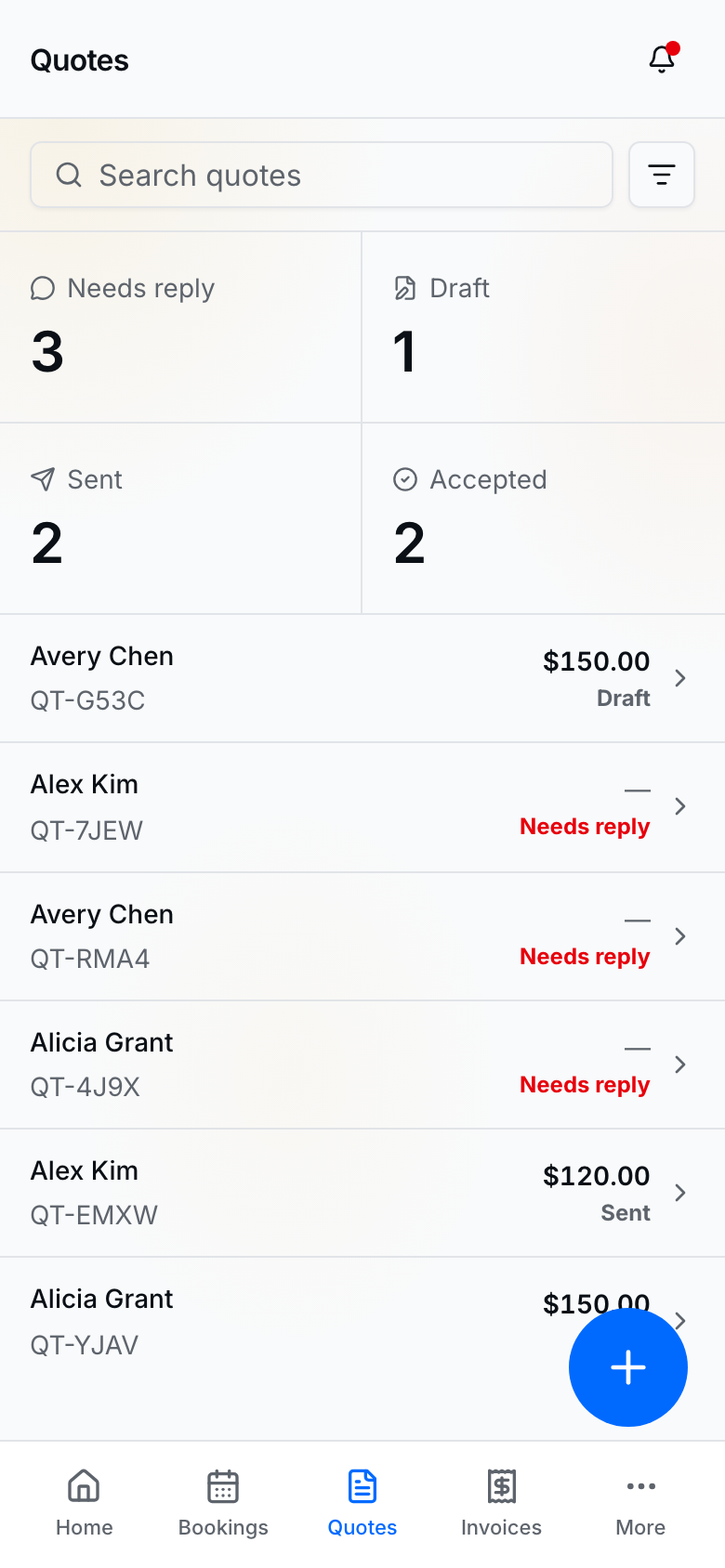
Quotes holds drafts, sent quotes, accepted quotes, and Needs reply customer requests.
2. Open a quote
Step 2
Quote detail to price, send, or follow up
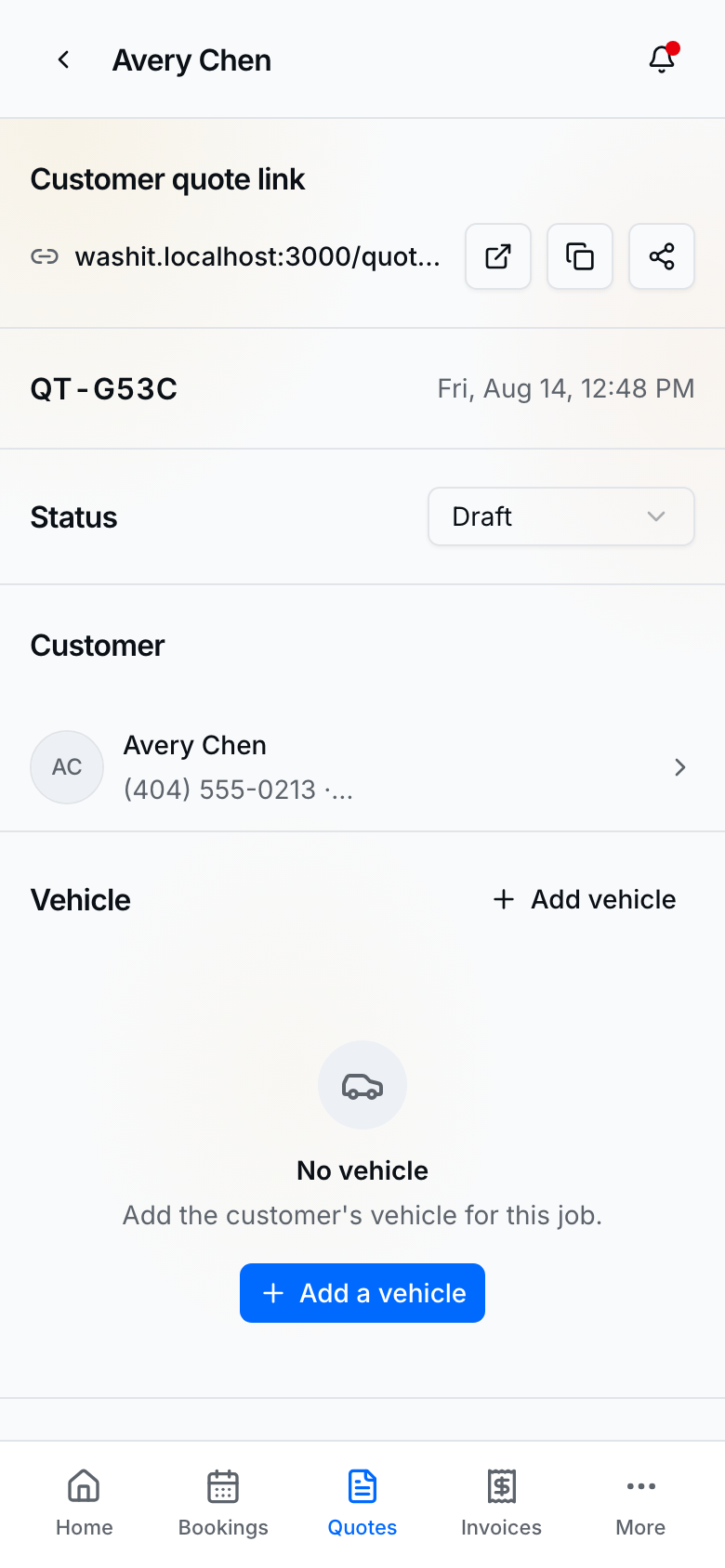
From detail you can add services and totals, Create and send quote on a request (uncheck Also send this quote to create a draft only), Send quote from the right-column footer on a draft, Mark as accepted or Mark as declined from the footer on a sent quote, share or copy the customer quote link, change Status, or open the linked booking when one exists.
Create and send a quote (you start it)
- Open Quotes → New quote.
- Customer — pick or create (phone required) → Continue.
- Services — add catalog lines and/or custom lines; optional schedule hints per line → Create quote.
- On the quote detail, tap Send quote (right-column footer).
- Choose text and/or email, preview the message, then Send quote.
- Share the Customer quote link if they need to open it again (Copy / Share).
When a customer requests a quote (from your website)
- Confirm Accept quotes is on in Settings → Quotes.
- Customer uses Request a quote on your public page (and near-me when you are listed). They can optionally add a job address, photos of the work (up to 6), and a vehicle or pet when your business type uses those. Name, phone, and a short description are still enough to send.
- The request appears under Needs reply on Quotes.
- Open it — add services and totals on the same page as a draft, then Create and send quote (uncheck Also send this quote if you only want a draft). If you close send without sending, the request stays Needs reply unless you Skip send and create draft. Or Dismiss if you will not bid.
- After you send, status moves to Sent. The footer becomes Mark as accepted / Mark as declined until they respond.
When the customer accepts
- They open the quote link → Accept quote.
- They pick a time (Schedule) and pay a deposit if you require it.
- They Confirm booking — the job appears in Bookings, and the quote shows as accepted with a link to the booking.
You can also Mark as accepted or Mark as declined yourself from the sent quote footer when you closed the deal offline.
Tips
- Use the same customer on quotes and bookings so history stays together.
- Attach a vehicle when your business type supports vehicles.
- Adding a catalog service asks Where then When. Let customer choose where and Let customer choose the time are on by default so the customer picks after they accept.
- Public Request a quote is the free inbound channel for near-me listings; Book now still needs your platform card and accept-bookings setup.
- Photos on a request stay on that quote — they are not copied onto the vehicle or pet gallery.