Contracts
Keep every agreement in one place — awaiting signature and signed — and author the templates customers accept when they book or when you send them something to sign.
See it in action
See it
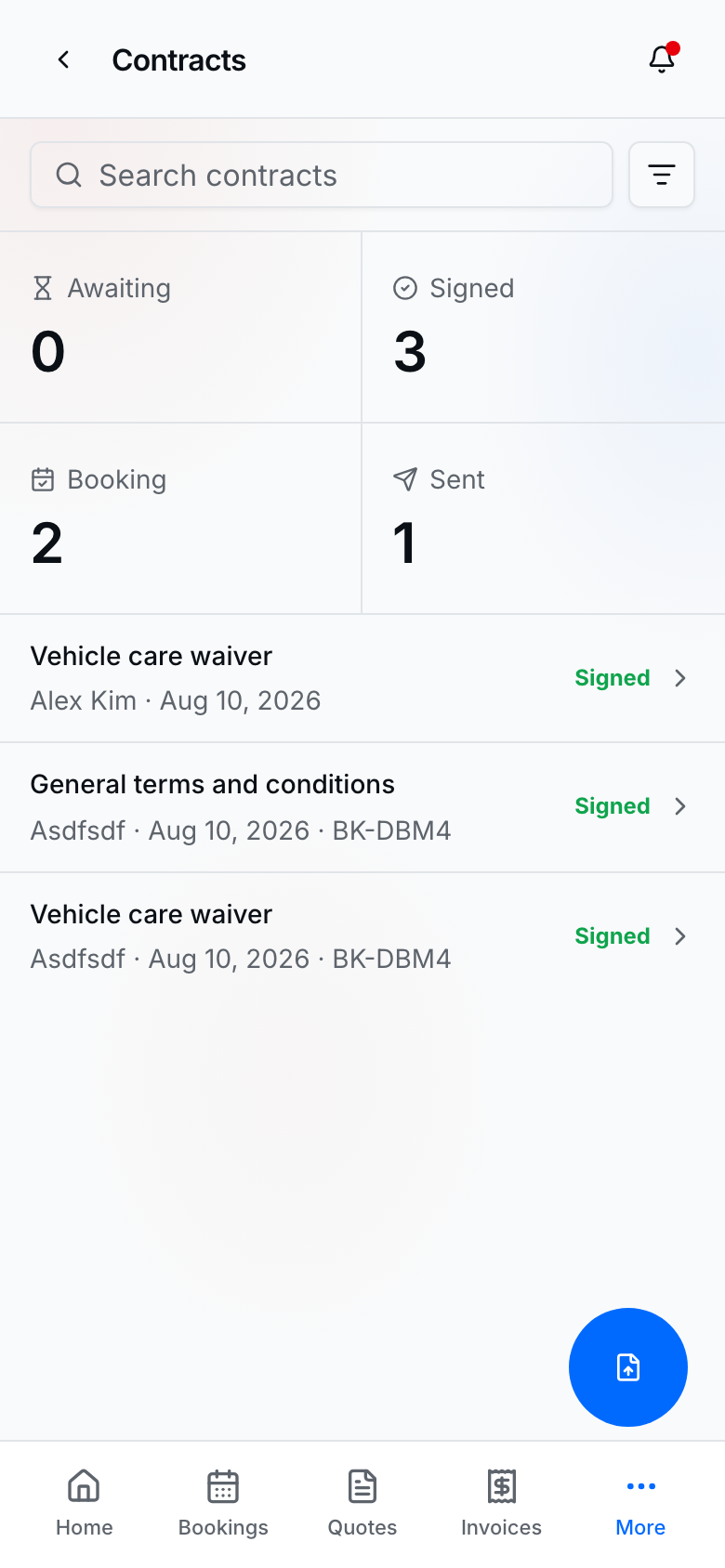
Contracts hub with Awaiting and Signed agreements
How to use it
- Open Contracts in the sidebar (below Invoices) to browse the hub. KPIs show Awaiting · Signed · Booking · Sent. Search by title, customer, or booking code, and filter with All · Awaiting · Signed.
- Awaiting rows are send-for-signature links that are still open (or expired). Open a row to copy the signing link again.
- Signed rows are booking acceptances, completed sends, and uploaded PDFs. Open a row for signatures, PDF, or the linked booking.
- On a customer page, use New contract (section or + menu) for the same sheet with that customer already selected — From template (creates a signing link) or From PDF.
- On the Contracts hub, the + FAB opens New contract: find a customer, then From template or From PDF. Both need a card on file.
- On an Awaiting contract detail, Send signing link delivers it by SMS or email (with preview), or Copy signing link to share yourself.
- Open Settings → Contracts for provider signature, then open Contract templates to manage General terms and custom templates. General terms are always required on public booking — publish them before you turn on bookings.
- Create or edit a template in the full builder — edit on the left and see the customer preview on the right (same layout as Website). For PDFs, switch to Place fields to click signature spots on the preview.
- On a service, optionally turn on Contract and search for a template or tap + New to create one.
- At public booking, customers complete every required contract before confirming. Each acceptance is snapshotted and appears under Signed.
Tips
- General terms can't be archived, deleted, or turned off — that's intentional so every business keeps booking terms.
- You can skip General terms during onboarding, but accepting bookings stays blocked until they're published.
- Publishing edits bumps the version; past bookings keep the text they agreed to.
- Save the template before placing PDF signature fields — placement is stored separately from the published content.
- Your saved provider signature is copied into each booking when you counter-sign — clearing it later doesn't change past bookings.
- Customer public signatures record IP and browser (user agent) on the signed-contract detail — useful if you ever need to show when and from where they signed.
- Expired signing links stay visible under Awaiting with an Expired badge so you can follow up; send a new link from the customer page.
- Invoice-linked signed contracts are not in this hub yet.