Customers
One place for who you serve — phone, history, and who is due again — so you are not reconstructing a relationship from old texts.
See it in action
See it
Customers list with people you already work with
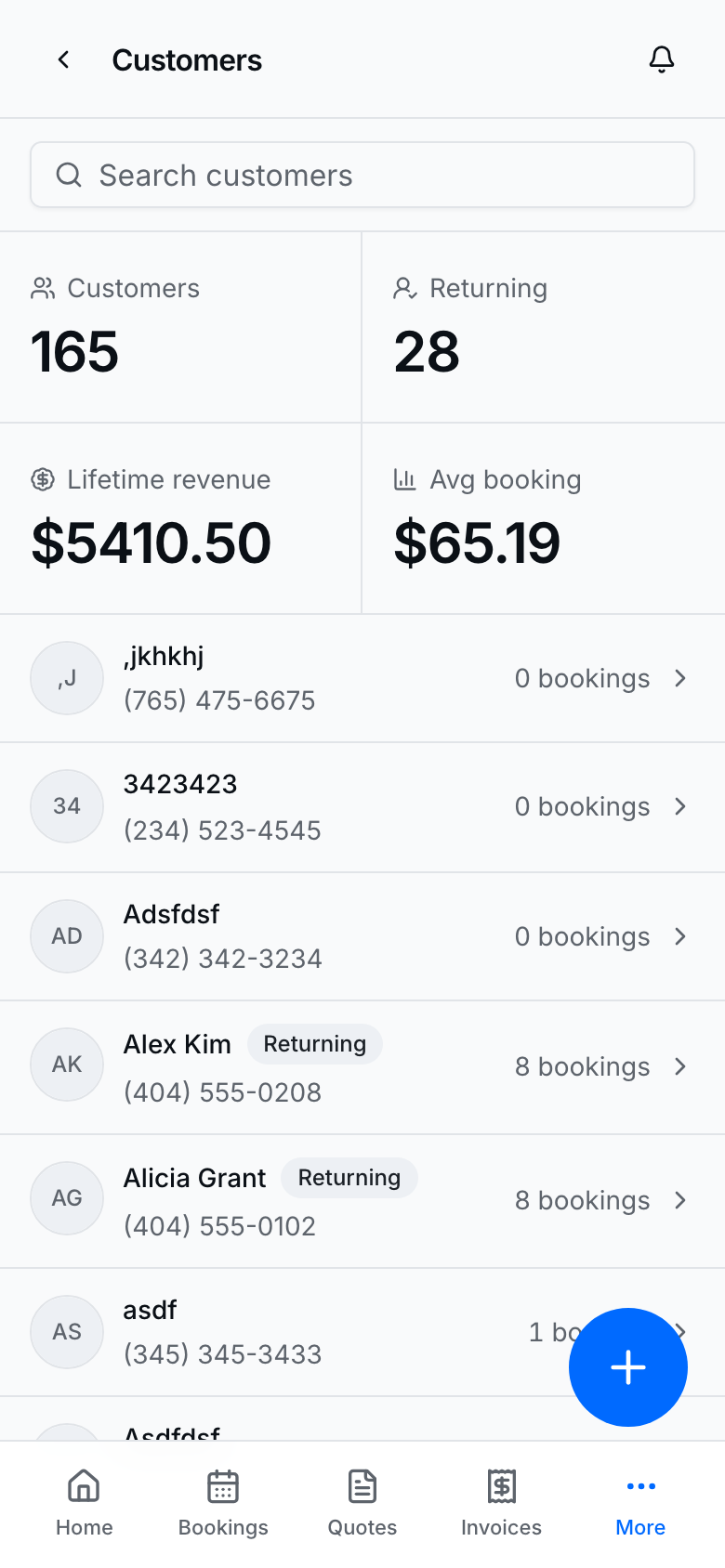
Search and open anyone on file; bookings, quotes, and invoices should point back here. A calendar icon marks people on an active standing cadence; the On the schedule KPI counts them.
Add a customer
- Open Customers → Add customer (needs a card on file for create gates that apply).
- Enter name and phone (required). Email and notes are optional.
- Save with Add customer.
- Open the row anytime to edit contact, see history, or start New booking / related work.
Open a customer
See it
Customer detail with contact, history, and related work
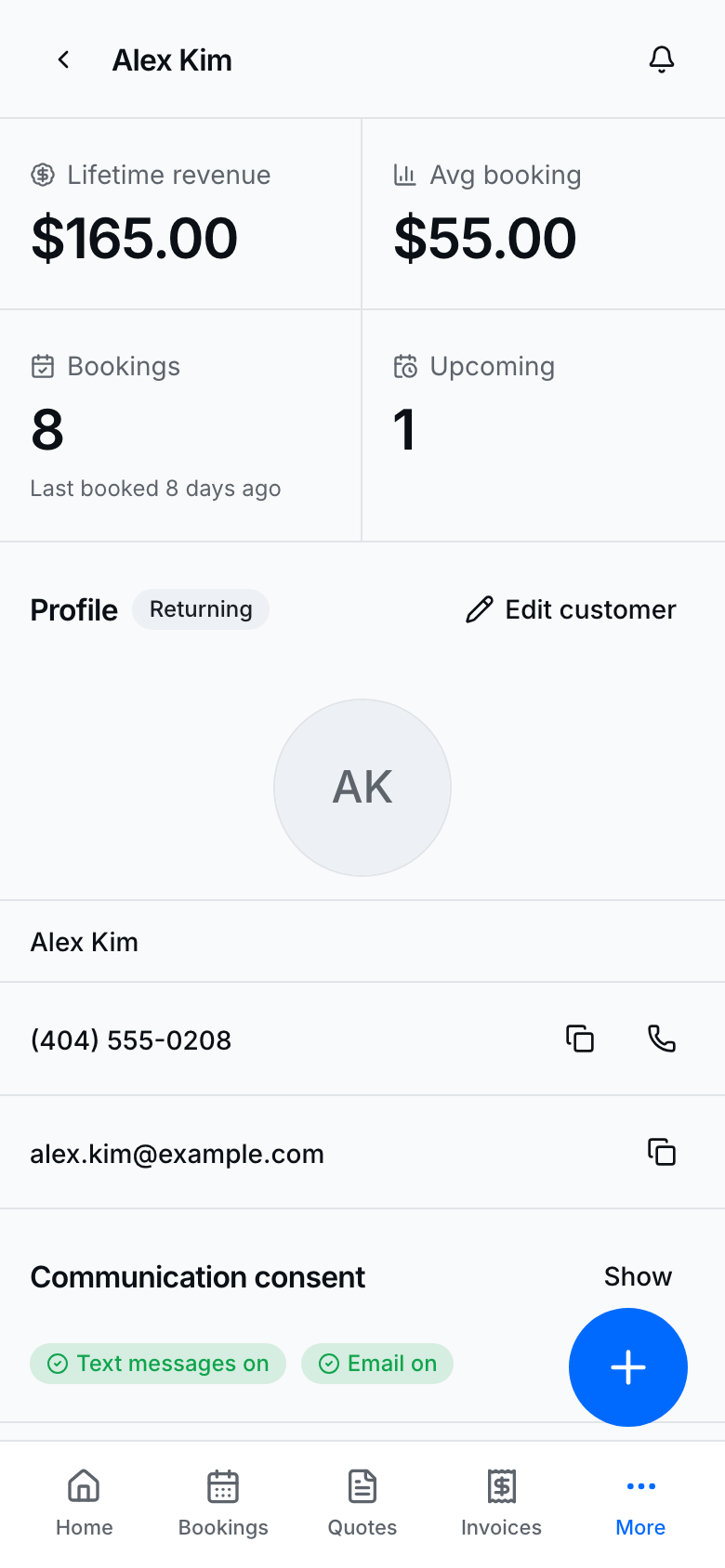
Notes, addresses, communication, bookings, schedules, quotes, invoices, and vehicles / pets / bins / doors / equipment (when enabled) live on one detail page. Beauty shops also have a Client card section (color formula, allergies, preferences) — not a second list.
From detail you can usually:
- Edit contact fields and notes.
- Open Communication to turn text or email consent on or off.
- On Beauty, open Client card (formula, allergies, preferences) — Edit customer shows the same fields.
- Start New booking (or related quote / invoice flows when offered).
- Open linked vehicles, pets, bins, doors, or equipment when your business type supports them. HVAC, Electrical, and Plumbing share Equipment (different kinds per trade — not a second list).
- Manage addresses for saved service locations (gate codes live here). Lawn, cleaning, pressure washing, roofing, attic, and insulation also record stories, sq ft, year built, and a property note on that address — not a separate Properties list.
- Jump into past bookings, quotes, and invoices without searching again.
- Customer portal link (above Details) — Open / Copy / Share the personal page so they can see upcoming jobs and Book again / Request a quote with their details already filled (D-491 / D-734). If they are on the schedule they can Skip this visit there (D-705).
- Header ··· → Delete customer — removes their profile, addresses, pets, bins, doors, equipment, and vehicles. Past bookings, quotes, reviews, and paid invoices stay. You can't delete someone who still has a confirmed booking or an unpaid invoice.
Schedules is its own section under Bookings: each live cadence is a row (service, how often, next visit) that opens a side sheet, or an empty state. Header New schedule (and the customer FAB) starts a cadence or a second catalog service. Pause and Remove schedule live on that sheet. Bookings keeps a banner so you can still set one up from there. See On the schedule.
Import customers
- Go to Settings → Customers → Import customers.
- Download CSV template or Download Excel template.
- Fill rows (name + phone at minimum); upload the file.
- Review normalized rows and warnings → Import N customers → View customers.
Imported people start without SMS/email marketing consent — ask before you blast them.
Tips
- Phone is stored as E.164; the UI shows a friendly local format.
- Use search and filters (including Due) to find follow-ups.
- Always reuse the same customer on bookings, quotes, and invoices so history stays intact.
- Header ··· deletes a customer only when they have no confirmed booking or unpaid invoice. Past jobs stay.
- Saved service addresses must be unique — you cannot add the same street twice (D-644).
- Put gate codes, parking, and hazards on the address (Manage addresses), not in the customer notes blob. Those notes show on Today's route and the booking Where block for that job (D-679).
- For lawn, cleaning, pressure washing, roofing, attic, and insulation, Manage addresses also holds stories, approx. sq ft, year built, and a property note (D-702). Fill that on the house — there is no separate Properties list.
- On Beauty, keep color formula, allergies, and preferences on the Client card — not in the general notes notepad (D-703). Public book can leave allergies; formula stays in CRM. There is no Clients list.
- Messaging consent matters for SMS & email updates — do not invent opt-in for imported rows.