Invoices
Send a clear bill and collect without chasing balances in your notes app. Track draft → open → paid, take payment in person or send the customer pay link, and nudge when money is still owed.
Before you start
- Platform card on file in Settings → Billing.
- Connect a processor and set tenders under Settings → Payments (and Merchants when you connect Stripe/Square).
- Customers and services ready under Customers and Services.
The invoice flow
1. Open Invoices
Step 1
Invoices list to track drafts, sent, and paid
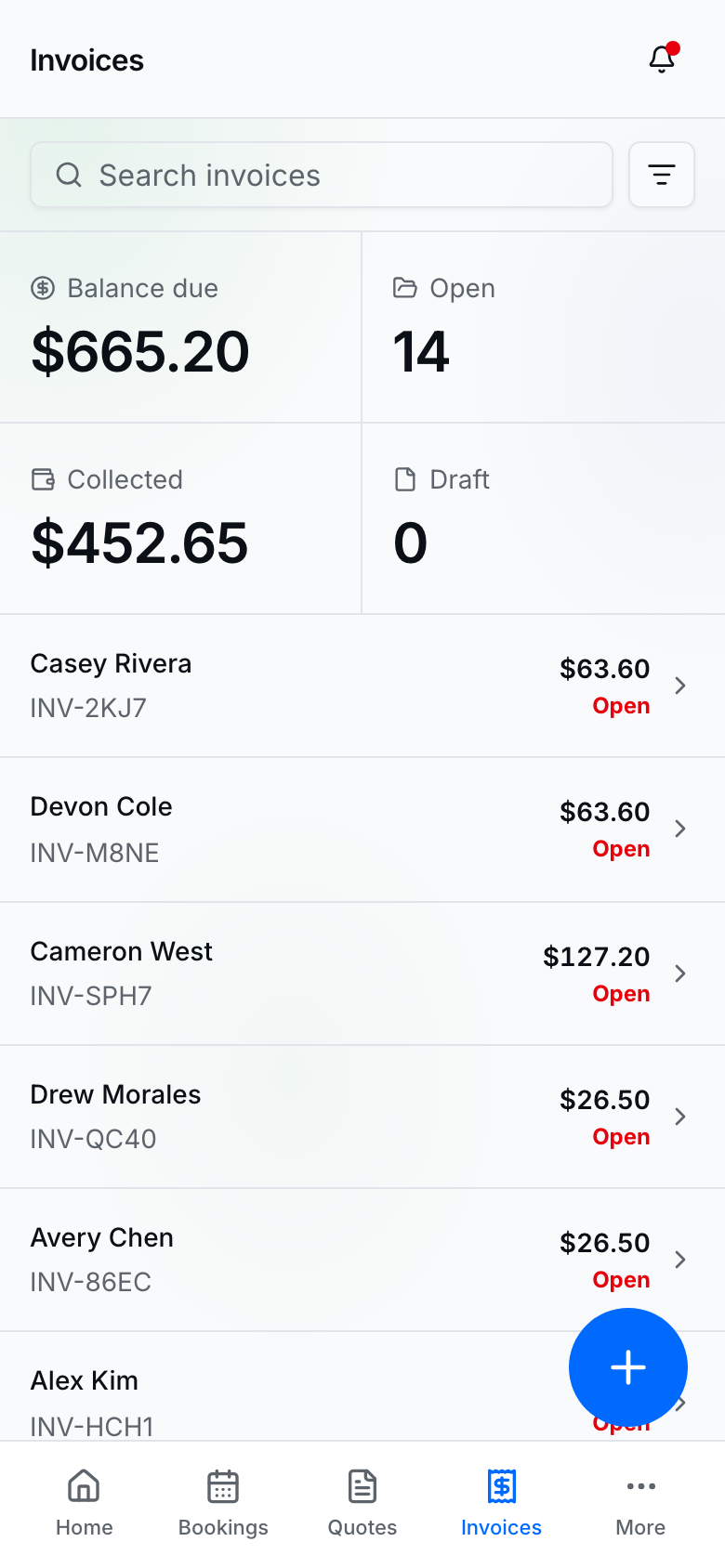
Invoices shows balance due, open, collected, and draft counts. Search and filter by status.
2. Open an invoice
Step 2
Invoice detail to send, remind, or take payment
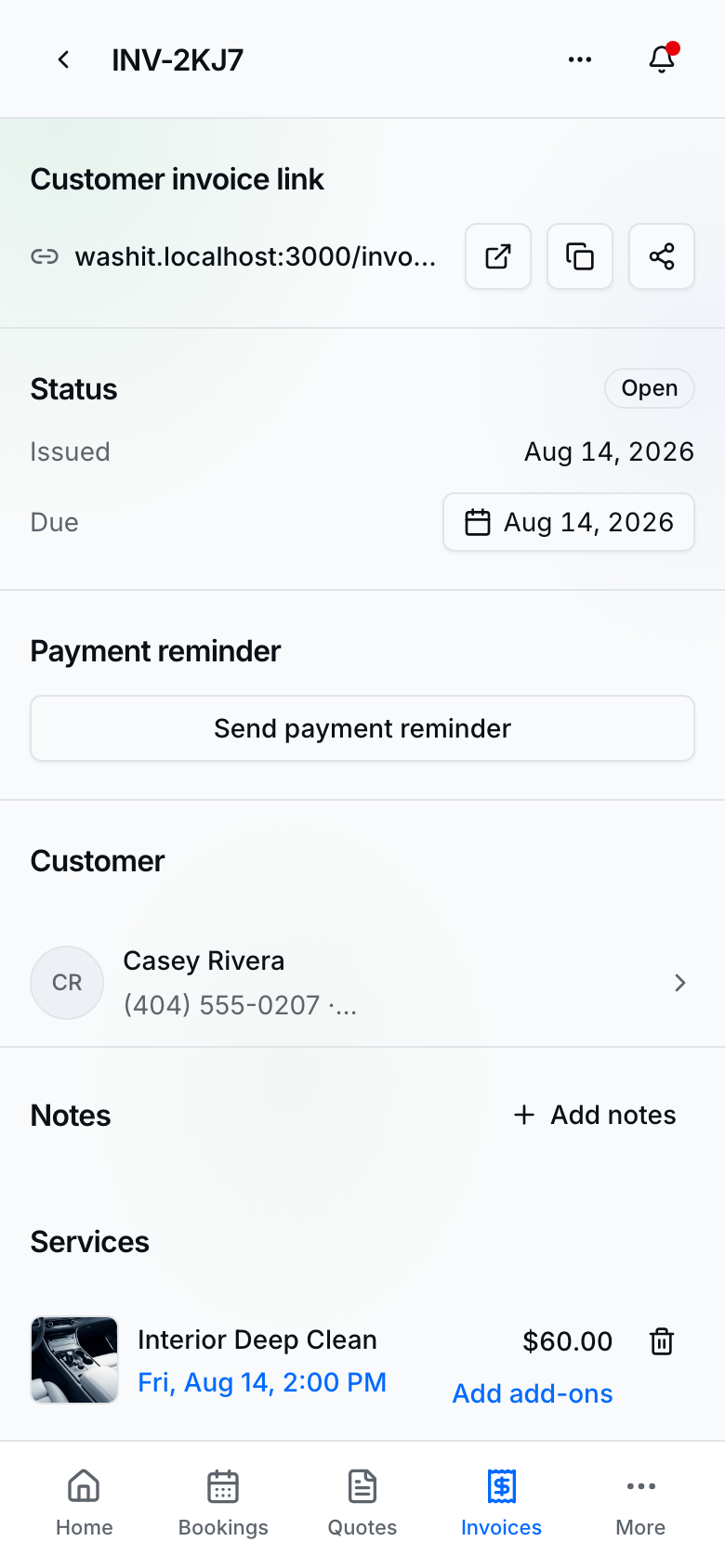
Detail has the customer invoice link, status with Issued (or Created on a draft) and Due, Send payment reminder under Status when a balance remains, line items, totals, and Take payment. You can change Due on unpaid invoices (today through 90 days). Unpaid invoices show Past due after the grace you set in Settings (next day by default).
Create an invoice
- Open Invoices → New invoice (or start from a customer / booking when that path is offered).
- Customer — pick or create → Continue.
- Services — add lines (catalog or custom), add-ons when needed → Create invoice.
- Share the Customer invoice link (Copy / Share / open) so they can pay online, or collect yourself with Take payment.
Take payment (provider)
- Open an invoice with a balance → tap footer Close to collect the remaining balance and finish, or Take payment in Totals to collect and stay on the invoice.
- Adjust amount due, discounts, fees, or promo when available.
- Charge card, or record an offline tender (cash, Venmo, Zelle, etc.) → Record payment / Pay ….
- Collecting the remaining balance from Close takes you back to Invoices. Collecting from Take payment in Totals stays on the invoice so you can keep working — paid invoices have no Close footer.
Customer pays on the link
- They open the invoice link from your message or Pay my bill on your public site.
- They verify when asked (SMS or email code on pay-bill lookup), then Pay {amount}.
- Paid invoices can feed review requests when automated reminders are on in Settings → Reviews.
Tips
- Prices are recalculated on the server — never trust a client-only total.
- Download Download PDF from the invoice menu when you need a printable bill.
- Bookings can link to invoices; use Take payment on the booking when the money document is the invoice.
- Invoice layout, the default due date, and Past due after live under Settings → Invoices. New invoices use that due date; you can still pick another day on any unpaid invoice. Past due is a label only — it does not change what you collected.
- Add travel fee suggests miles from today's route (from the last booking or homebase, including the drive home when you actually go home). You can change the amount before adding it. If the invoice already has a mobile (we come to you) booking, that travel line is added for you — edit or remove it if you want. After you remove it, it stays off unless you add it again from the Plus menu. You can't add a second travel fee.
- Tap Don't charge card processing fee when you don't want to add it on card pay. Total and Balance stay the same; cash / Venmo / Zelle never include it.
- Do not confuse customer invoices with platform Billing invoices under Settings → Billing.